1. Login to your Pathways account through Clever, ClassLink, or at pathwayslearningstudio.com.
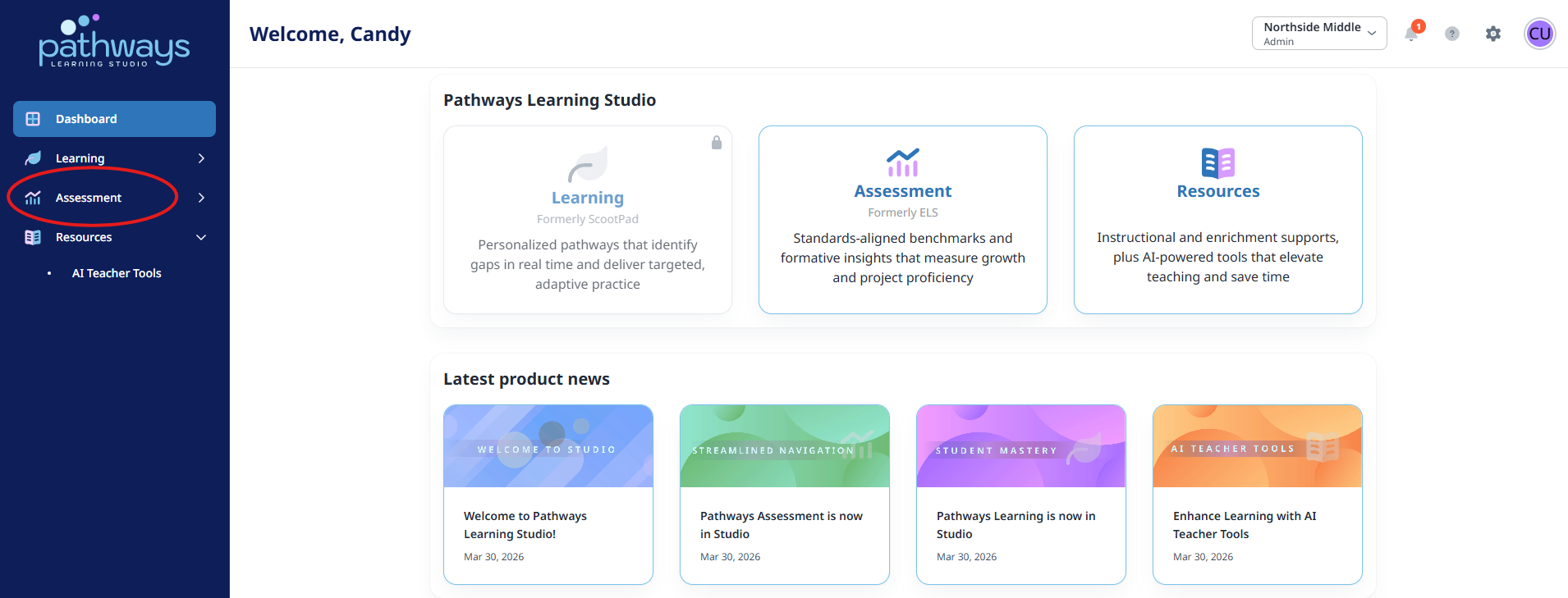
2. Navigate to 'Assessment' on the left-hand navigation bar.
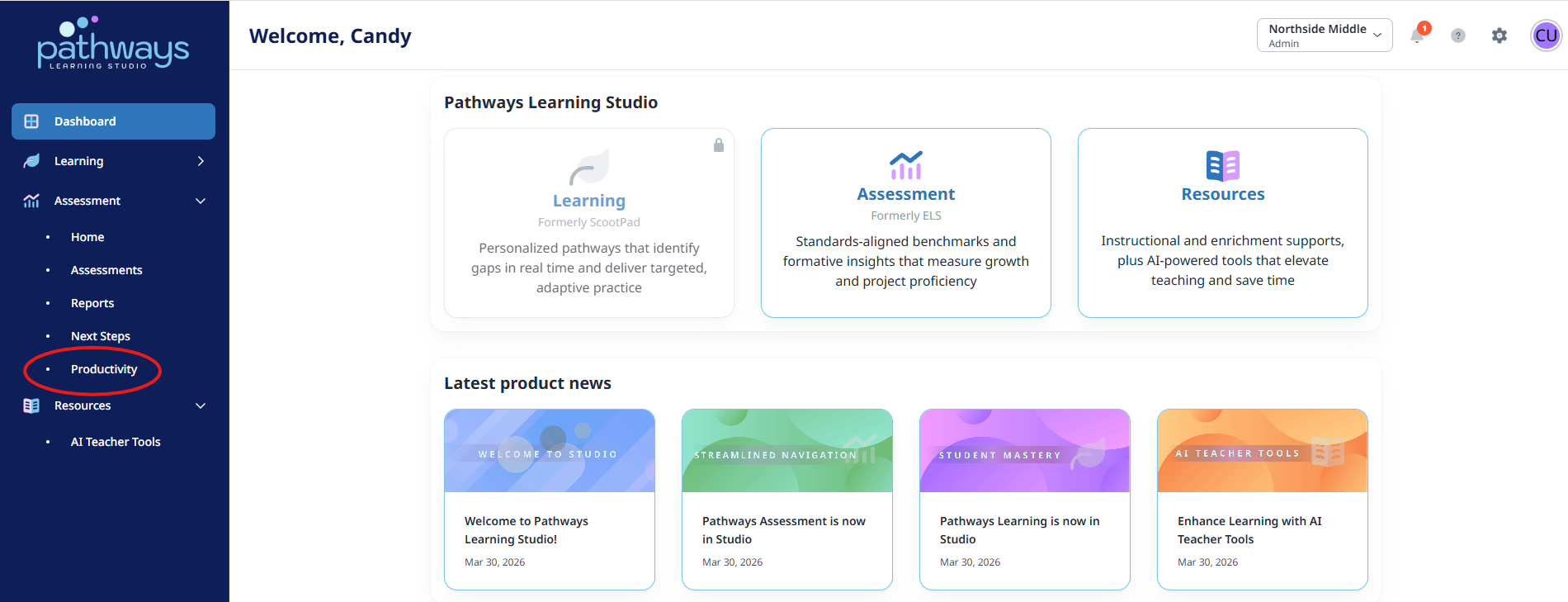
3. Navigate to 'Productivity' located under 'Assessment' on the left-hand navigation bar.
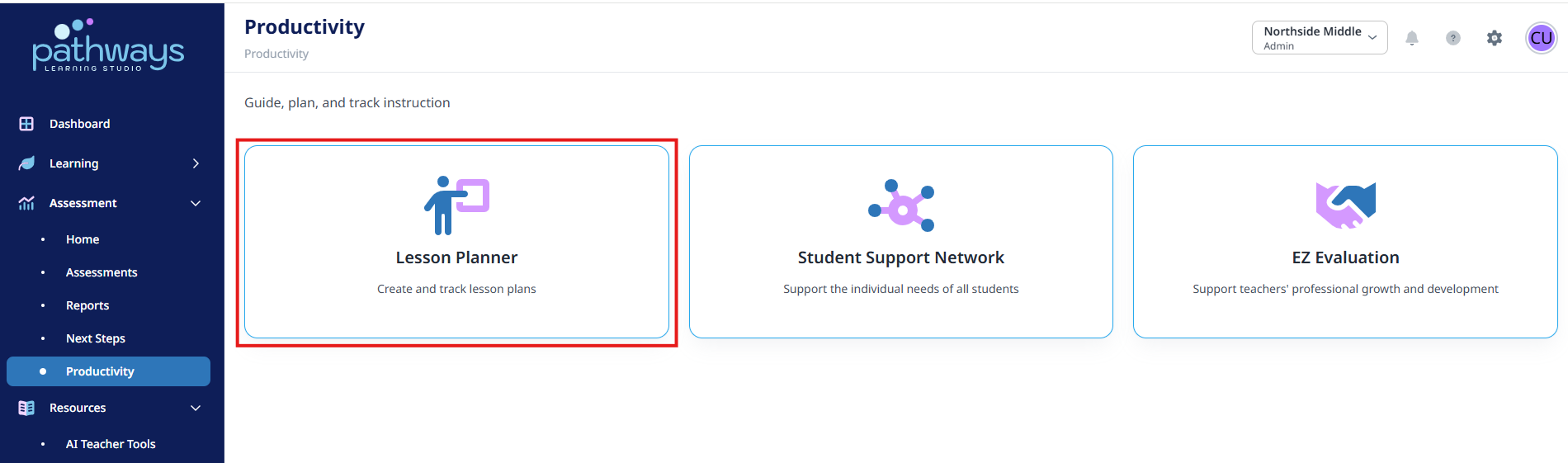
4. Select 'Lesson Planner' from the Productivity dashboard.
If this is the first time logging into Lesson Planner, you will be prompted to provide missing information.
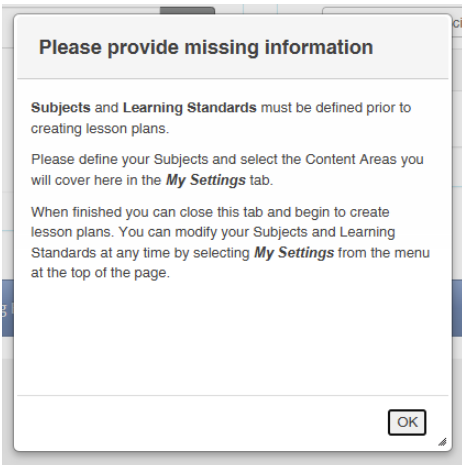
This process will only need to be completed the first time you log into Lesson Planner or if the subject you teach changes. At any time during the school year, you can make changes to your subject or standards by clicking My Settings.
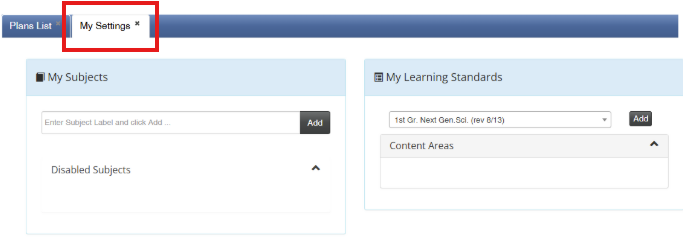
5. Type in your subject and click 'Add.'
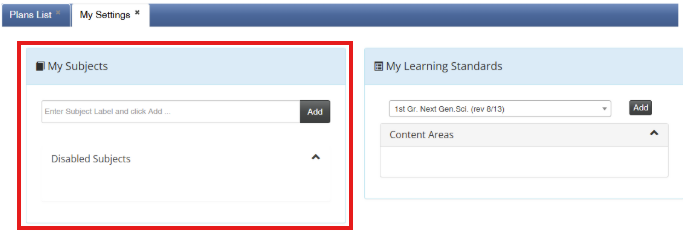
6. Select your standards from the drop-down menu and click 'Add.'
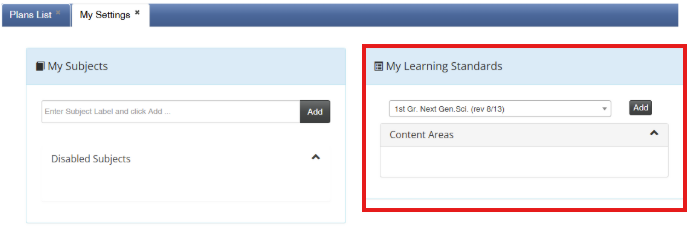
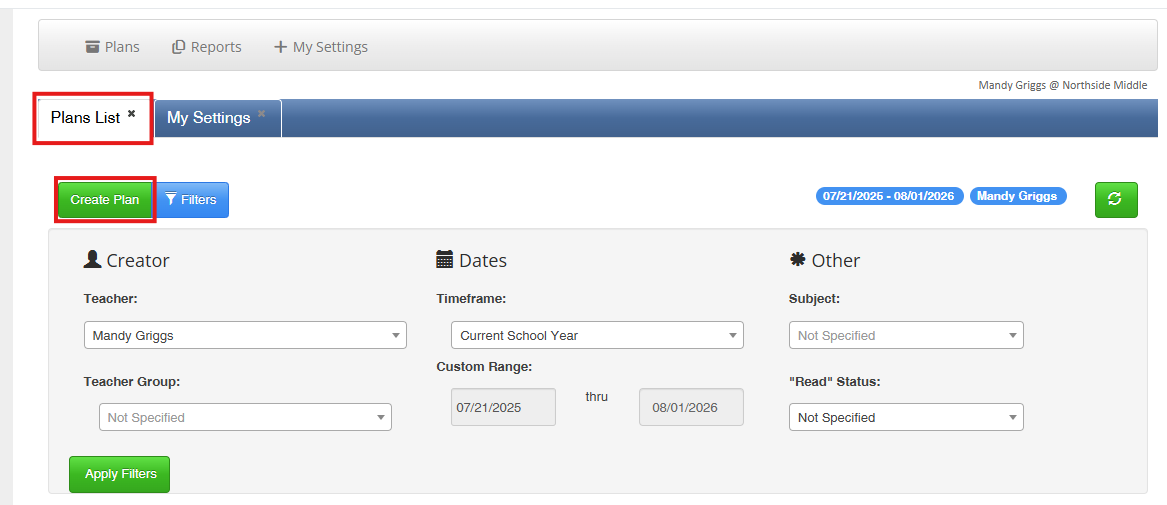
7. Select the 'Plan List' and 'Create Plan' to begin creating your lesson plans.
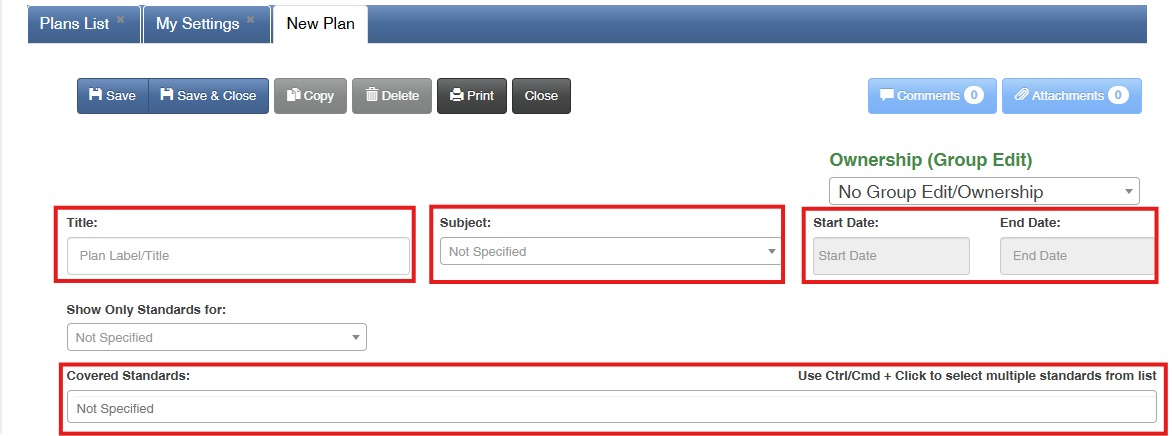
8. Fill in the Title, Subject, Start Date, and End Date. Choose your subject from the drop-down menu and select the standards covered in your lesson.
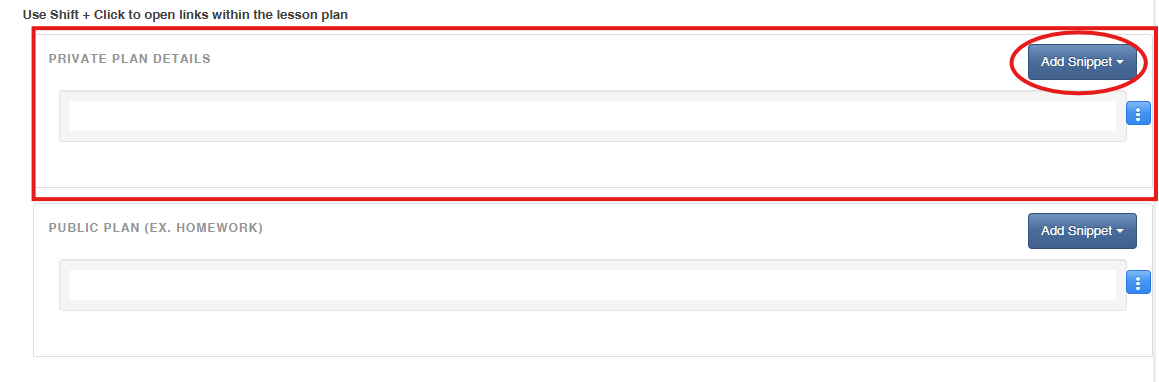
9. 'Private Plan Details' is the space for your detailed lesson plan. 'Add Snippet' allows you to access district templates.
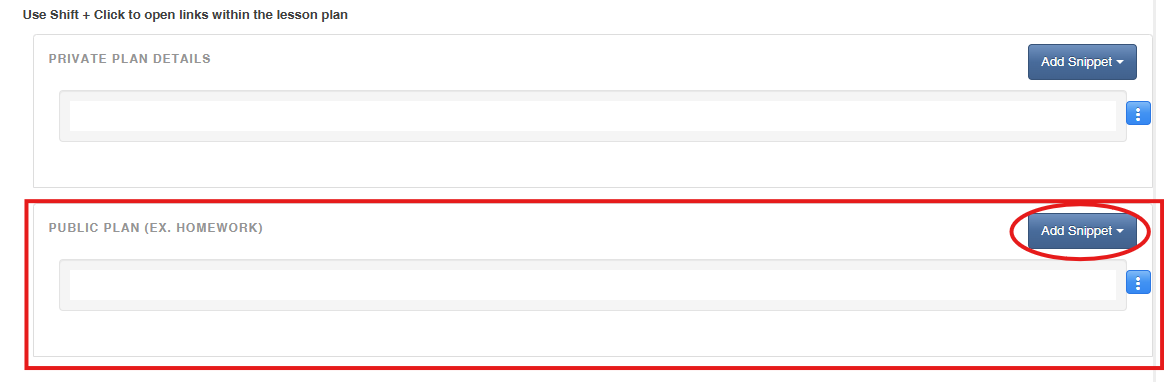
 10. 'Public Plan' will contain Homework assignments. 'Add Snippet' allows you to access district templates.
Was this article helpful?
That’s Great!
Thank you for your feedback
Sorry! We couldn't be helpful
Thank you for your feedback
Feedback sent
We appreciate your effort and will try to fix the article