This article will explain how users auto-score extended text questions for benchmark writing prompts.
Note: To score extended text items, the assignment needs to be unpublished. If you previously published the assignment, you can unpublish it by following steps 1-4 below. Then change the Status filter at the top of the page to Completed to view published assignments. Choose the checkmark for the assignment you wish to score and choose Unpublish from the Actions drop-down. Then continue with step 5 below.
1. Login to your Pathways Learning Studio account through Clever, ClassLink, or at pathwayslearningstudio.com.
2. Navigate to 'Assessment' → 'Home.'
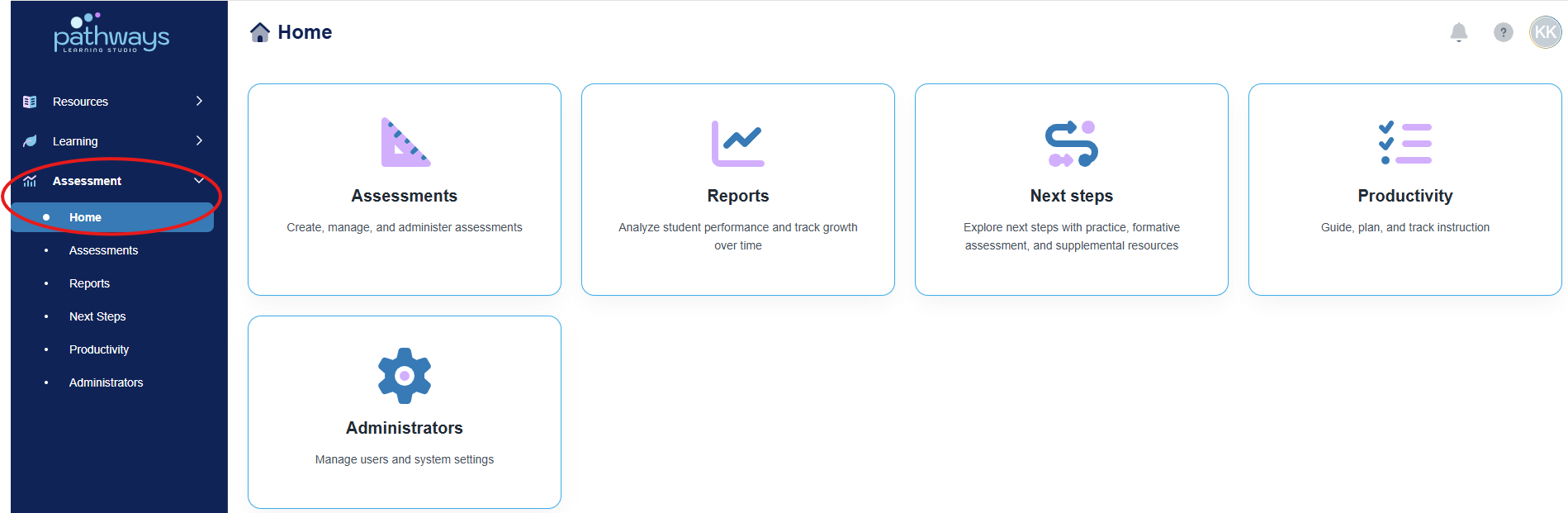
3. Select the 'Assessment' tile.
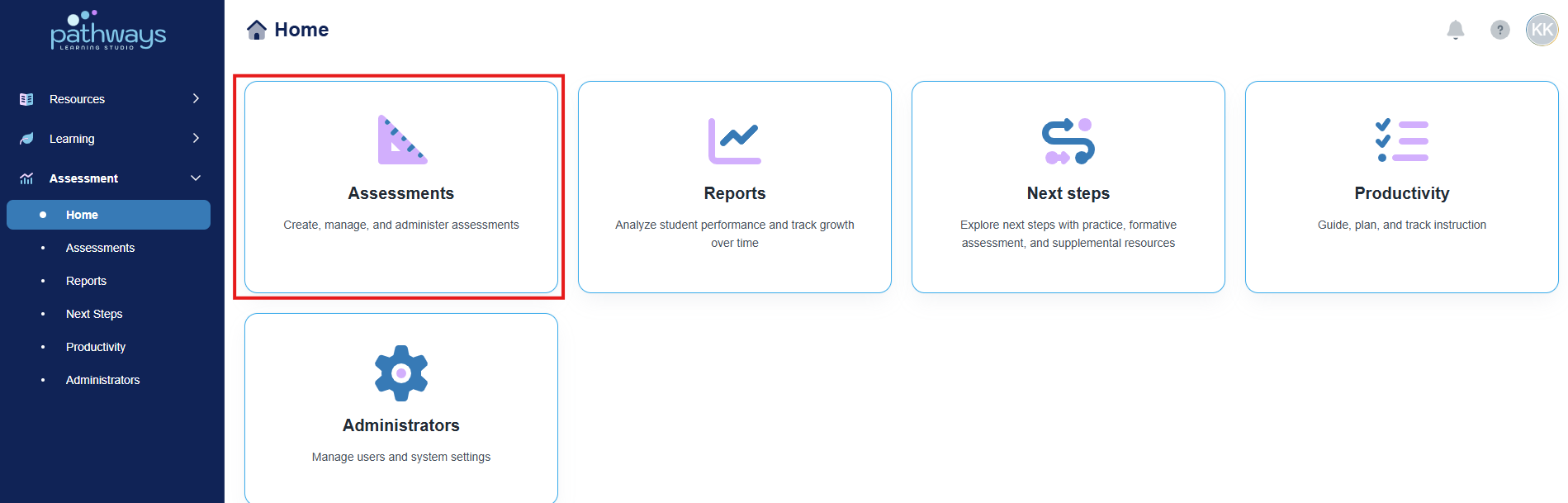
4. Select the 'Assignment' tile.
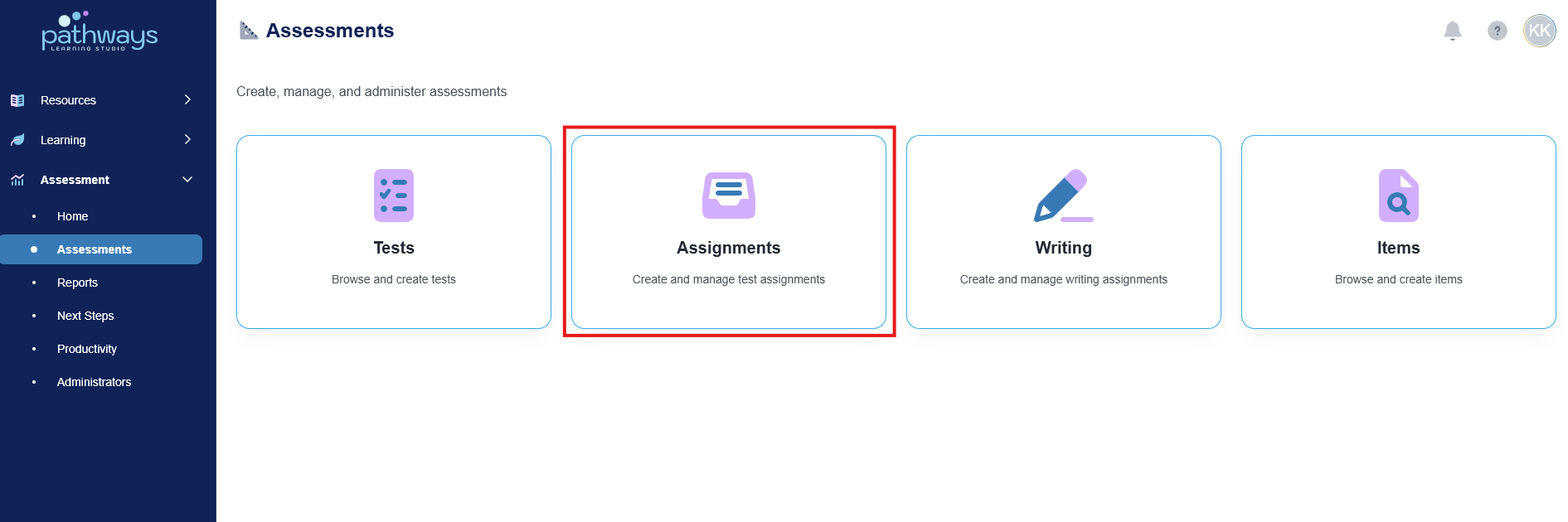
5. Locate the assignment of the assessment for which you wish to change the access code, and select the folder icon to the left of the assessment date.
If the folder icon is not present, a district level administrator has made the assessment private.
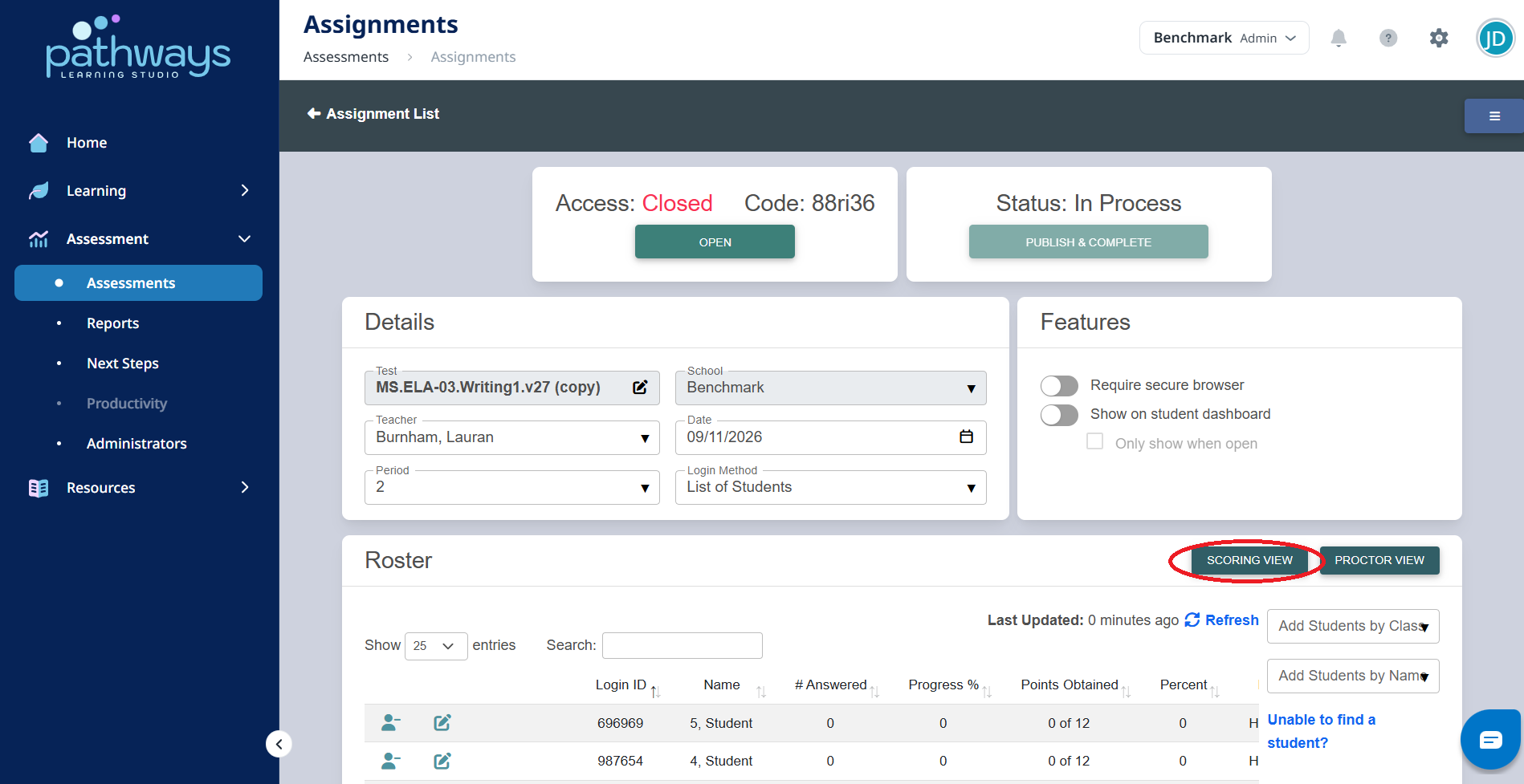
6. Select the ‘Scoring View’ button at the center right of the screen.
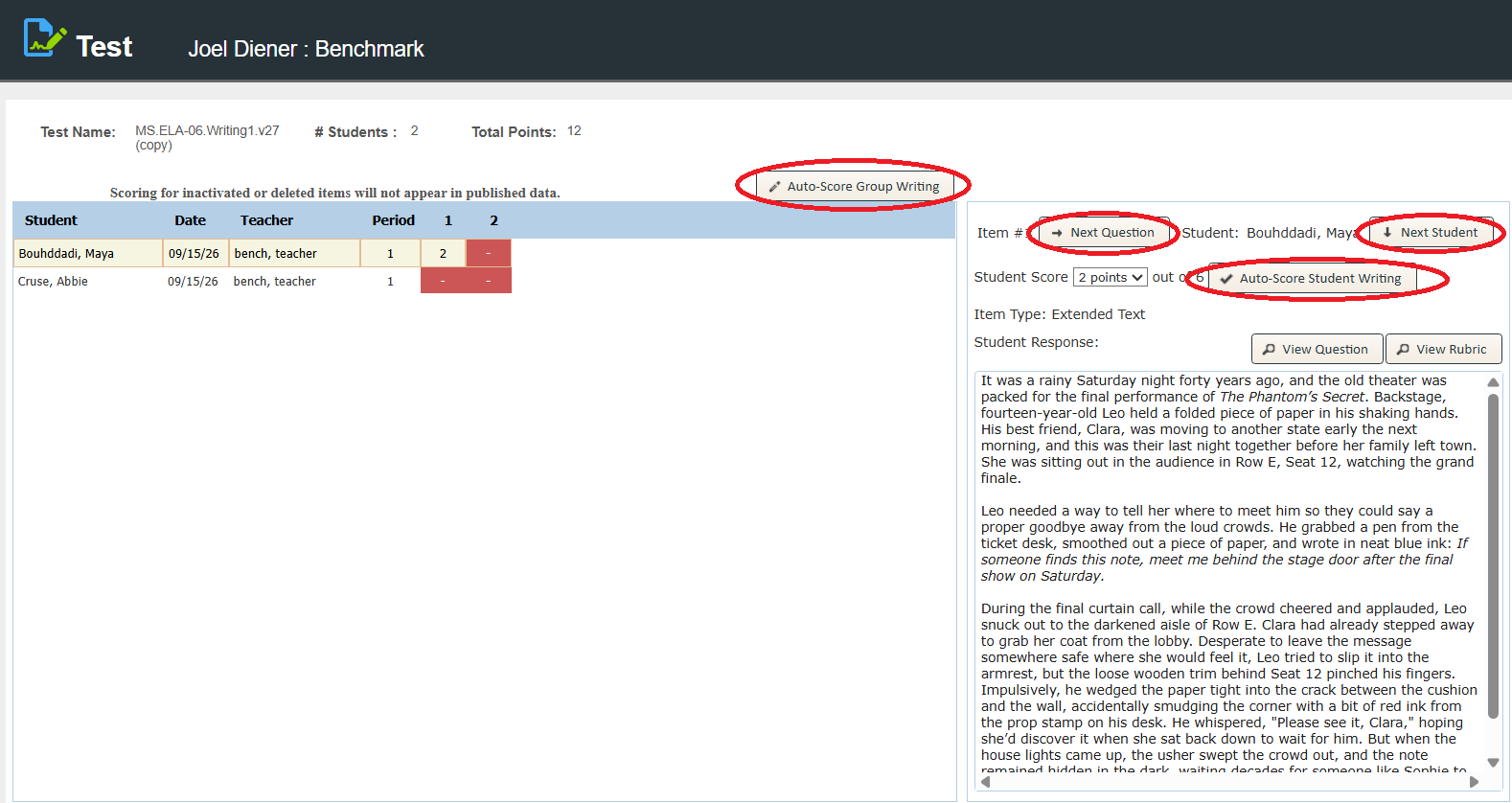
7. Navigate questions and students with the ‘Next Question’ and ‘Next Student’ buttons at the top right of the screen. Choose 'Auto-Score Group Writing' to auto-score all student answers as a batch. Choose 'Auto-Score Student Writing' on the right side of the page to auto-score one student at a time.
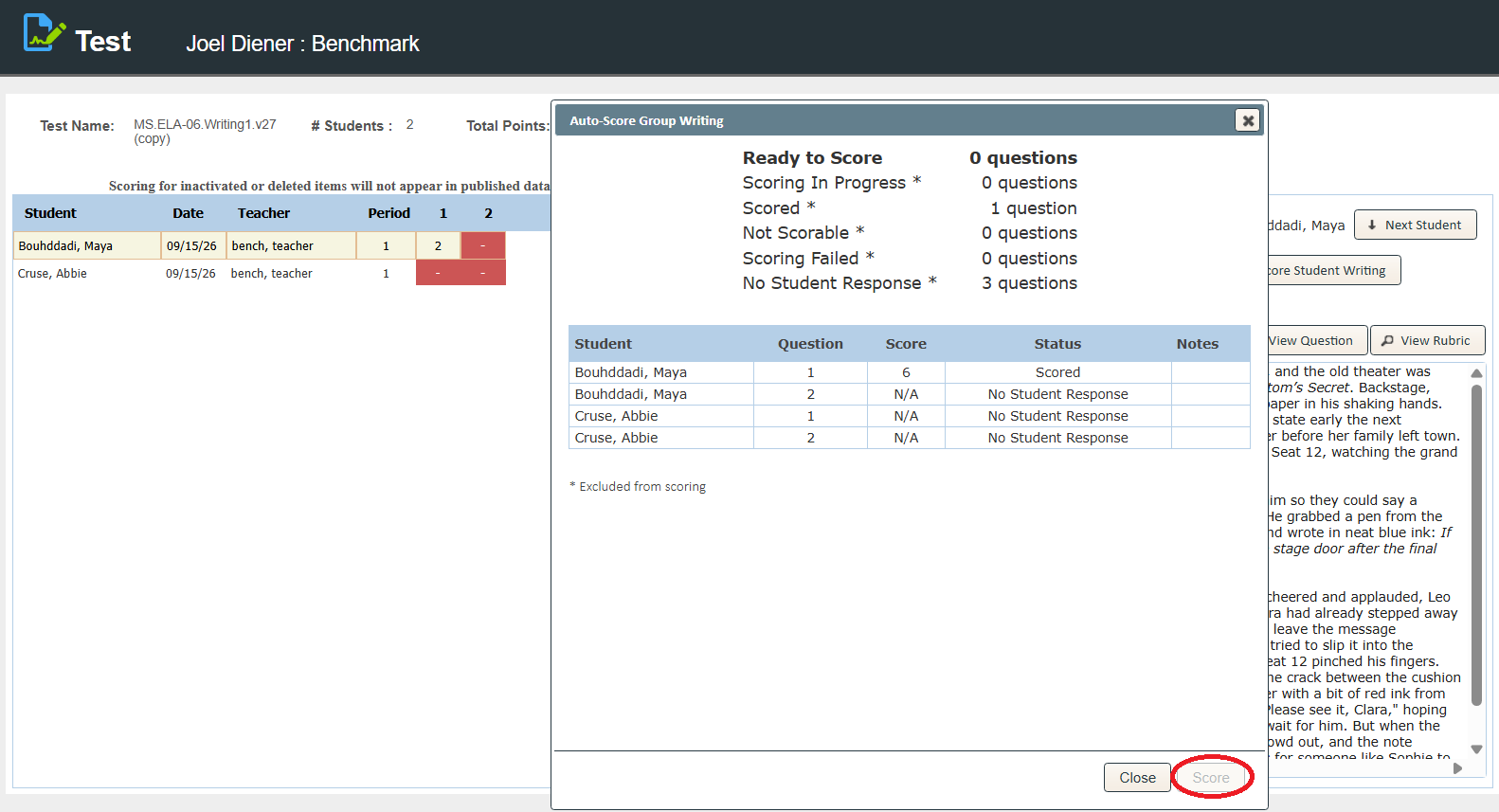
8. Choosing 'Auto-Score Group Writing' will open a pop-up modal that indicates the number of questions that are ready to auto-score, the number of questions that have already been scored, the number of questions with no student response, and the number of questions, if any, that aren't scorable or for which scoring failed (very short responses or responses that heavily copied from the passage or prompt are examples of responses that may be indicated as Not Scorable). Additional information is available in the table below. Choose the 'Score' option at the bottom of the modal to score any questions that are ready to auto-score.
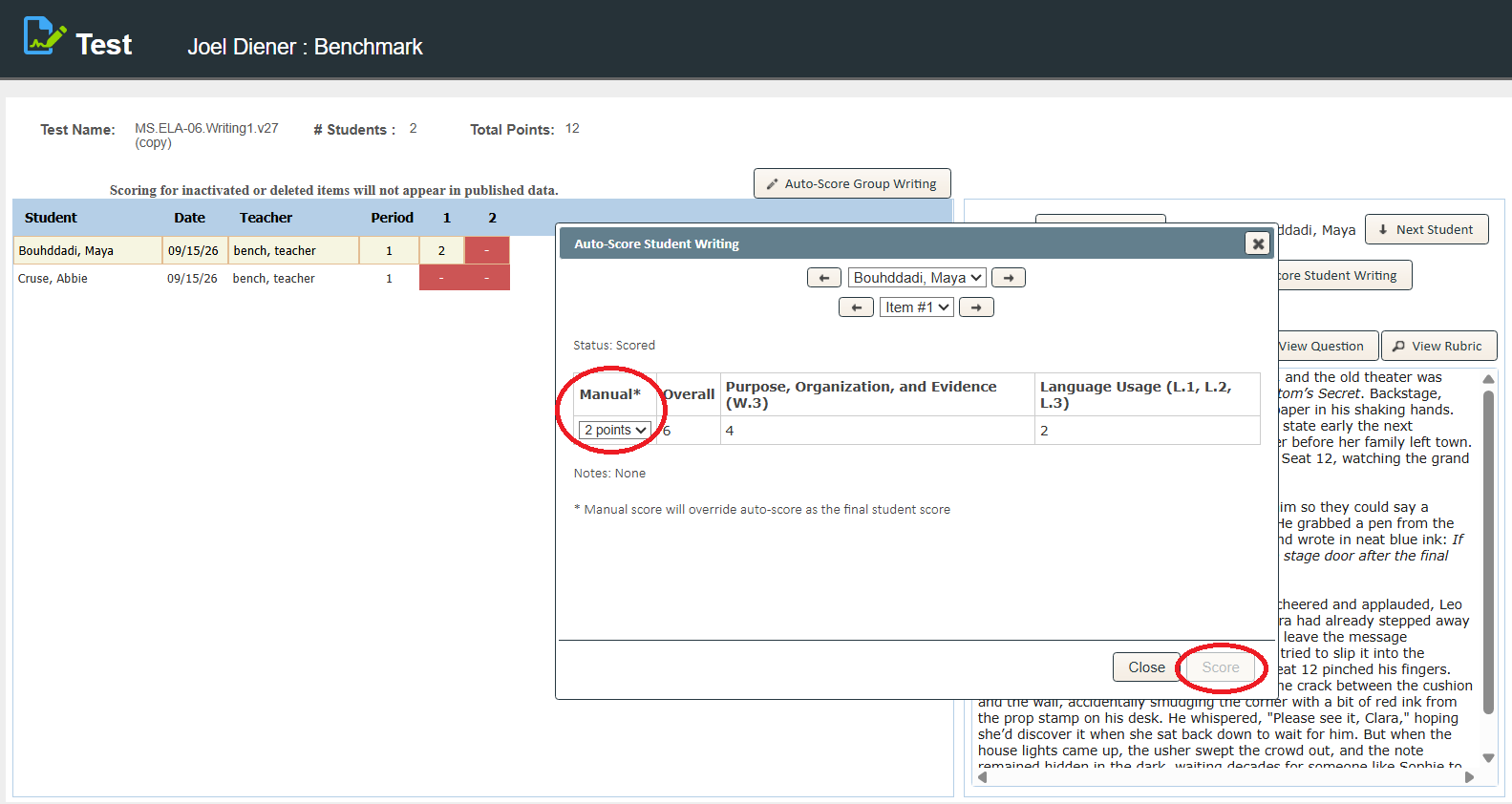
9. Choosing 'Auto-Score Student Writing', pictured in step #7, will open a pop-up modal that displays information for one student and one question/item at a time. Choose the arrow keys next to the student's name or the item # to switch between students or items. If the question/item being viewed has already been scored, the table will indicate the student's overall score and the score for each subcategory. An alternate manual score can be chosen to override the auto-score if/when applicable. If the question/item being viewed has not yet been auto-scored, choose the 'Score' option at the bottom of the modal to score the question/item.
10. Once scoring has been completed for all students and items, return to the assignment details page either by closing the browser tab or choosing the 'Close' option in the top right corner of the page. Choose 'Publish & Complete' near the top of the assignment details page to make the scored results visible when navigating to Reports -> Test reports.
Was this article helpful?
That’s Great!
Thank you for your feedback
Sorry! We couldn't be helpful
Thank you for your feedback
Feedback sent
We appreciate your effort and will try to fix the article