The Writing Results report is designed to help educators analyze student performance on assessments that consist of extended text (essay) items.
Additionally, an individual student report can be printed from the writing results. To help families better understand their student's results, print and share Understanding Your Student's Pathways Assessment Writing Report: A Quick Guide for Families alongside the report.
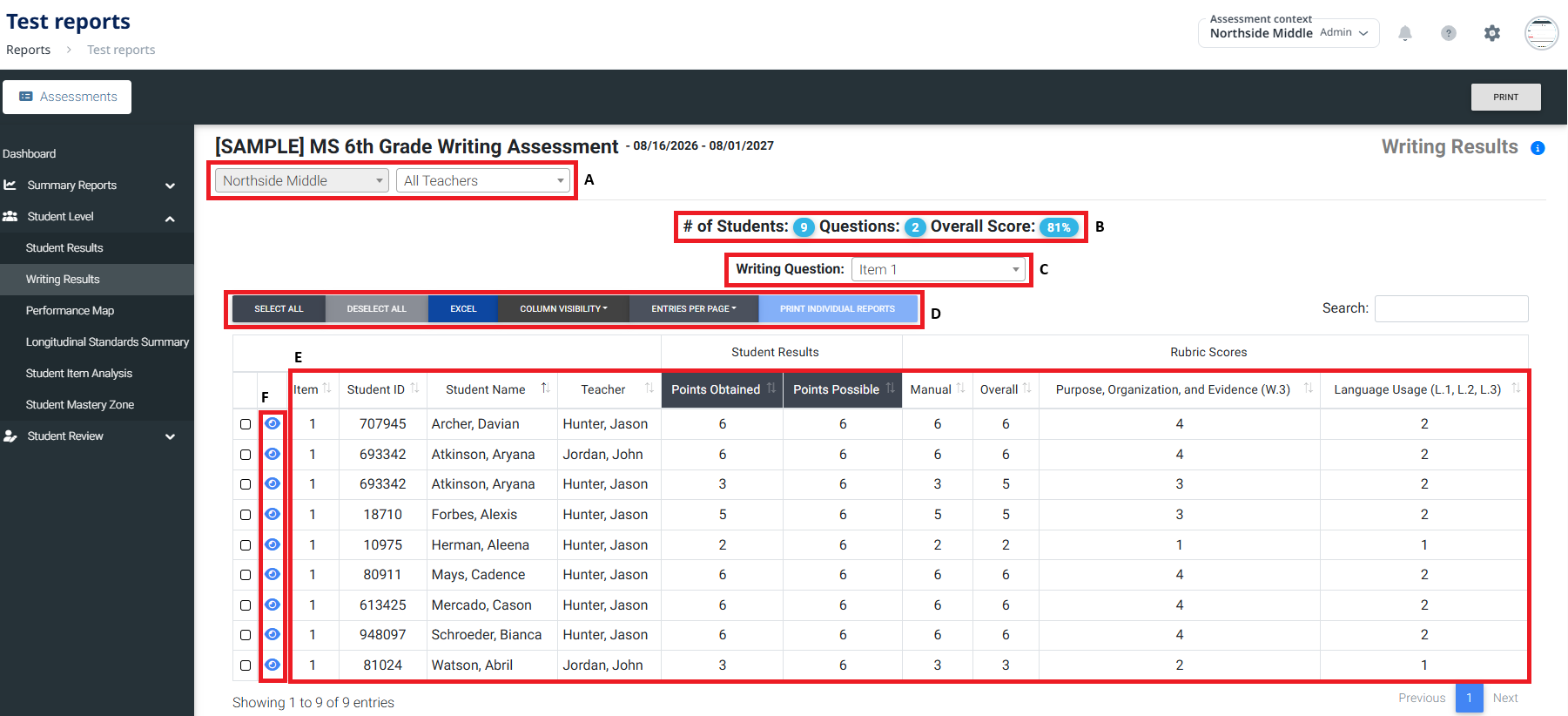
- Select which school, teacher and/or period to view.
- Review general assessment data.
- Switch between questions/items for tests that have multiple items.
- Report actions:
- Select All/Deselect All (for printing individual reports)
- Excel – download results into an Excel document
- Column Visibility – select/adjust which columns are visible
- Entries Per Page – choose the number of student records to show on each page
- Print Individual Reports – (See next image) Filter in Section A must be set for an individual teacher in order for this report to be available. Choose student(s) by selecting the box to the left of their name (or choose Select All) then click on 'Print Individual Reports'.
- Assessment results, including points obtained and percent correct.
- Select the eye icon for a student to view that student's response for the selected item.
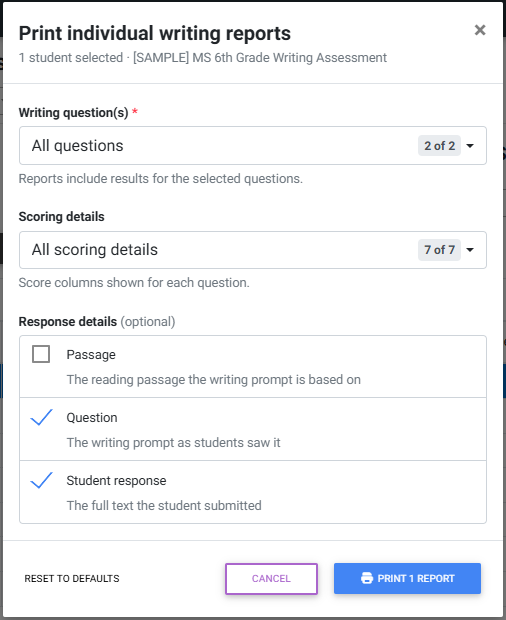
For printing individual reports, choose a teacher from the filter at the top of the report. Then select one or more students and choose 'Print Individual Students'. Review/adjust the report options in the pop-up modal (pictured below) and select 'Print [# of selected students] Report' to proceed.
View an example of an individual writing report below. An explanation for each outlined area is listed below the image.
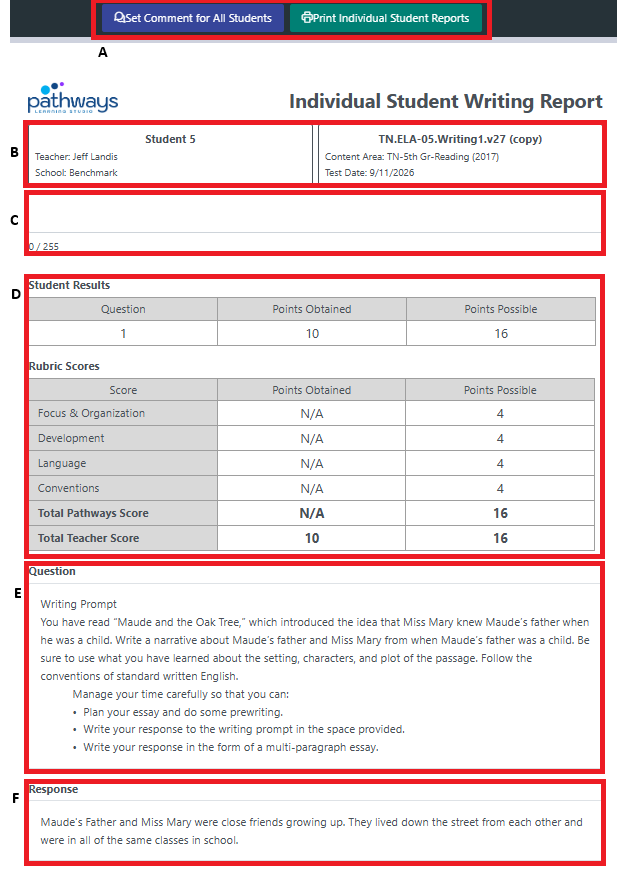 Report actions:
- Set comment for all students: Sets the same message for all students in the text box near the top of the each report. Individual comments can be typed directly into the text box indicated in section C described below.
- Print individual student reports: Opens print menu for sending report(s) to printer.
- Student, teacher and school name along with name of the assessment, content area and test date.
- Teacher or admin comments.
- Results for the question/item including points obtained, points possible, subcategory scores, the total Pathways score and the total teacher score (the Pathways score and teacher score will be the same unless the teacher input a score that differs from the Pathways score).
- The question/prompt to which the student responded.
- The student's response.
Was this article helpful?
That’s Great!
Thank you for your feedback
Sorry! We couldn't be helpful
Thank you for your feedback
Feedback sent
We appreciate your effort and will try to fix the article