The Student Results report displays each student's percentage correct and points obtained for the assessment. For Snapshots and Benchmark assessments, a projected performance level, growth measurement, and suggested test average are also included. Baseline scores (student’s previous year state test results) and results from other tests given during the year can also be added to this report.
Additionally, an individual student report can be printed from the student results. To help families better understand their student's results, print and share Understanding Your Student's Pathways Assessment Report: A Quick Guide for Families alongside the report.
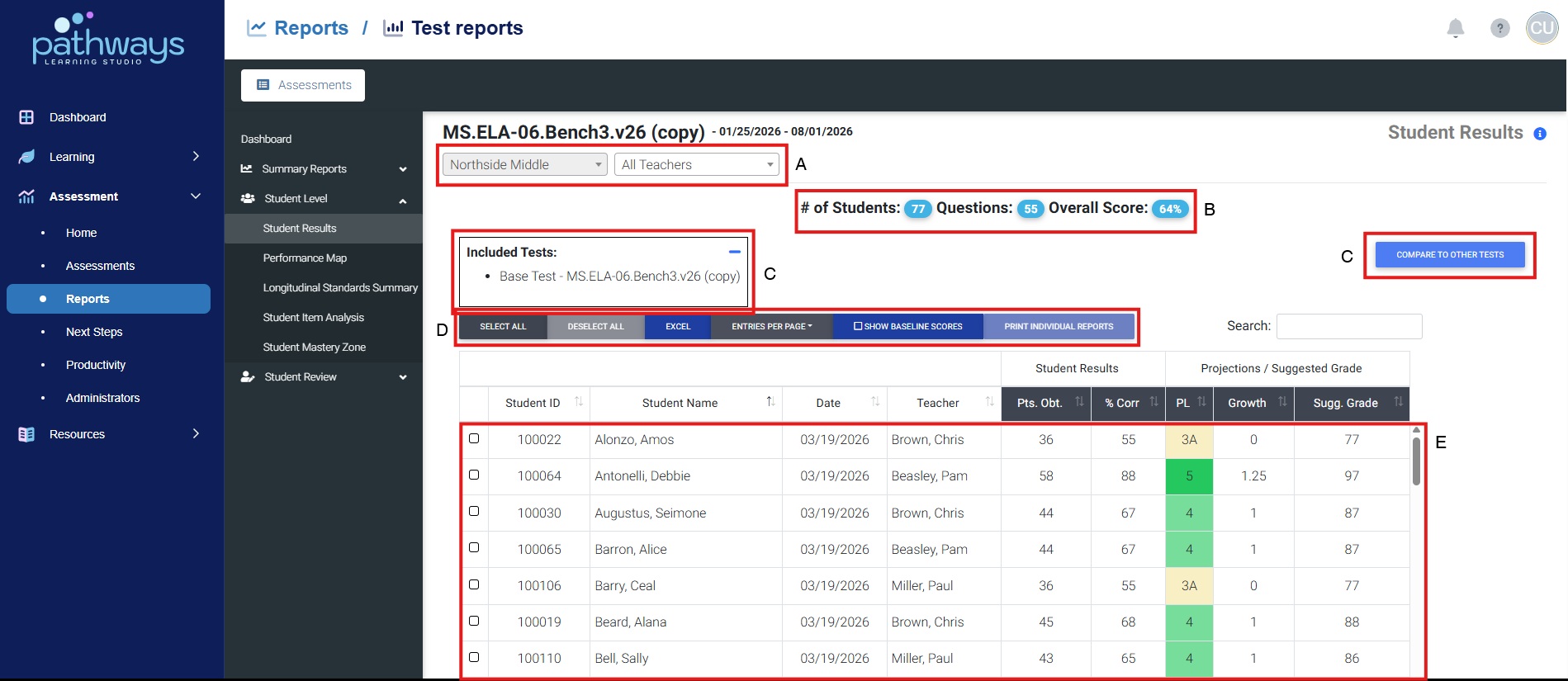
- Select which school, teacher and/or period to view.
- Find general assessment data here.
- Assessments included in this report (columns for additional assessments can be added by selecting ‘Compare to Other Tests.’)
- Report actions:
- Select All (for printing individual reports)
- Excel – download results into an excel document
- Entries Per Page – choose the number of student records to show on each page
- Show Baseline Scores – show student score on previous state assessment
- Print Individual Reports – (See next image) Benchmark assessments only. Filter must be set for an individual teacher for this report to be available. Choose student(s) by selecting the box to the left of their name, the click on Print Individual Reports.
- Assessment results, including points obtained and percent correct. Predictive assessments also include a projected performance level, growth measurement (as compared to student baseline score when available) and suggested average. Predictive information is posted several days after the district’s results have been published to reporting.
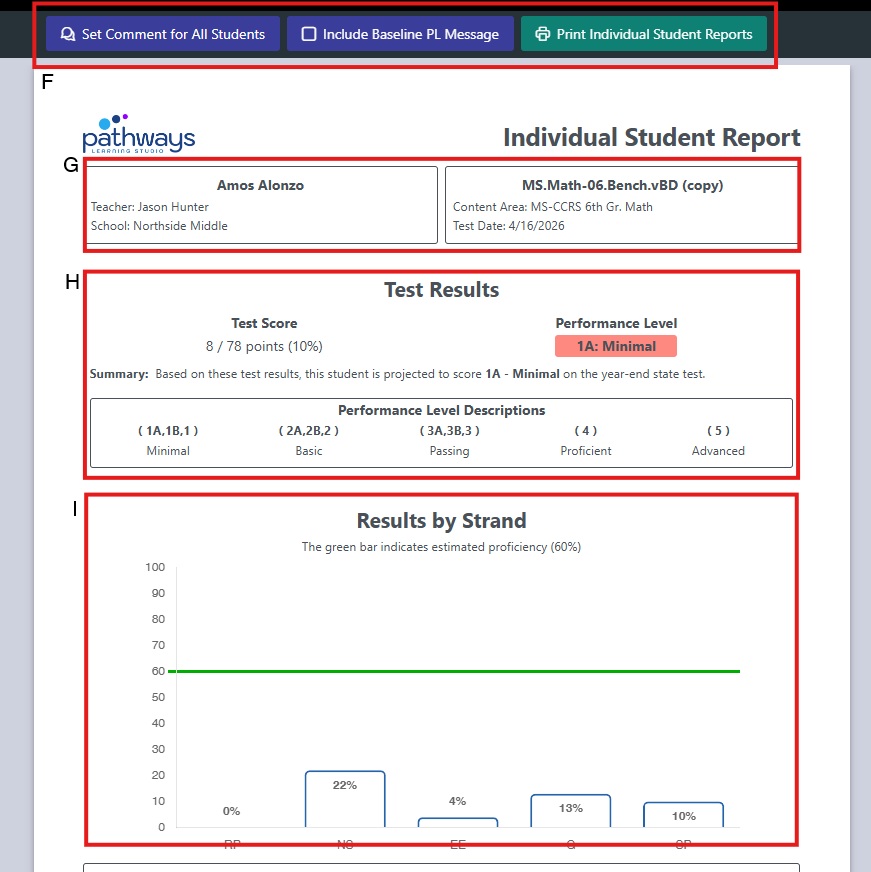
- Report actions:
- Set comment for all students: Sets the same message for all students in the text box at the bottom of the page. Individual comments can be typed directly into this text box for specific students.
- Include Baseline PL message: includes the student’s baseline score (from previous year’s state assessment) when available.
- Print individual student reports: Opens print menu for sending report to printer.
- Student, teacher and school name along with name of the assessment, content area and test date.
- Test results, including total points earned out of total points possible, percent correct and performance level projection.
- Results by strands to include the estimated proficiency level and performance by strand.
- Comments to include feedback or highlights from the teacher, administrator or staff member.
Was this article helpful?
That’s Great!
Thank you for your feedback
Sorry! We couldn't be helpful
Thank you for your feedback
Feedback sent
We appreciate your effort and will try to fix the article